Web Workspace and Admin
Fabric's web experience coordinates two surfaces on the same local-first runtime. Workspace is for conversations, agents, automations, evidence, and outcomes. Admin is for integrations, channels, models, credentials, configuration, and system maintenance. It does not replace the CLI, TUI, or Desktop with a second agent core.
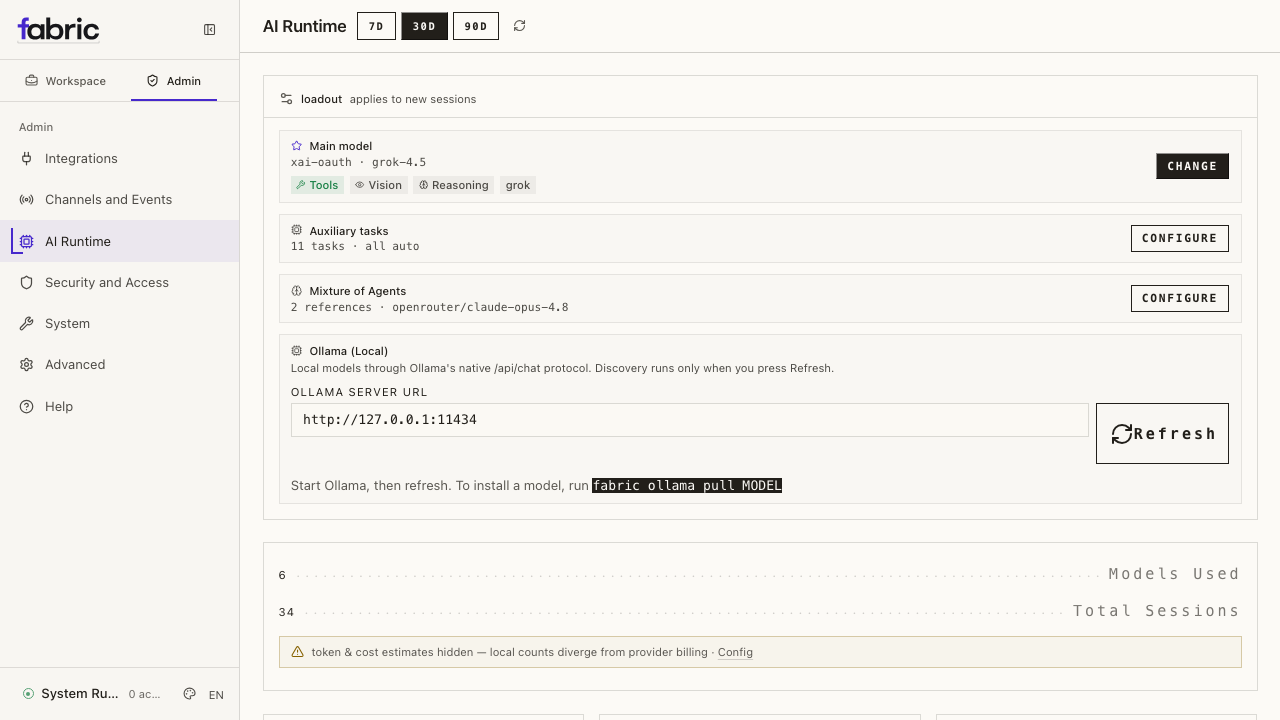
Quick Start
fabric dashboard
This starts a local web server and opens http://127.0.0.1:9119 in your
browser. The server and management state stay on the machine. Agent requests,
tool calls, messaging events, and integration traffic still follow the model
providers and services configured for the selected profile.
Options
| Flag | Default | Description |
|---|---|---|
--port | 9119 | Port to run the web server on |
--host | 127.0.0.1 | Bind address |
--no-open | — | Don't auto-open the browser |
--insecure | off | Deprecated compatibility flag. It no longer bypasses authentication; every non-loopback bind still requires an auth provider. |
--isolated | off | When launched from a named profile (worker dashboard), run a dedicated per-profile server instead of routing to the machine dashboard |
# Custom port
fabric dashboard --port 8080

# Bind to all interfaces (use with caution on shared networks)
fabric dashboard --host 0.0.0.0

# Start without opening browser
fabric dashboard --no-open
Managing multiple profiles
The web experience is a machine-level management surface: one server manages every profile on the machine. A profile switcher in the sidebar (visible whenever more than one profile exists) decides which profile the management pages read and write — Advanced, Secrets, Skills, MCP, AI Runtime, and Chat all follow it. While a profile other than the dashboard's own is selected, an amber banner names the managed profile so the write target is never ambiguous.
The selection lives in the URL (?profile=<name>), so deep links like
http://127.0.0.1:9119/admin/integrations/skills?profile=worker land with the switcher
preselected and survive refresh.
Launching the dashboard from a profile alias routes to the machine dashboard instead of starting a second server:
worker dashboard
# → already running: opens the browser at ?profile=worker
# → not running:     starts the machine dashboard with "worker" preselected
Pass --isolated to opt out and run a dedicated server scoped to that
profile (the pre-unification behavior — useful if you deliberately expose
different profiles' dashboards with different auth).
The Chat tab follows the switcher too: a scoped chat spawns its PTY
child with the selected profile's FABRIC_HOME, so the conversation runs
with that profile's model, skills, memory, and session history. Switching
profiles starts a fresh terminal session.
What stays per-profile and is not absorbed by the switcher: gateway
processes (manage them via fabric -p <name> gateway …), each profile's
session database, and cron schedulers (Automations already aggregates
across profiles with its own filter).
A Fabric profile is an independent agent configuration and memory island. It is not a tenant, team workspace, site, human identity, or role. Enterprise scope and capability enforcement are staged backend contracts; hiding a link in the current shell is not an authorization boundary.
Prerequisites
The default fabric-agent install does not ship the HTTP stack or PTY helper — those are optional extras. The web dashboard needs FastAPI and Uvicorn (web extra). The Chat tab also needs ptyprocess to spawn the embedded TUI behind a pseudo-terminal (pty extra on POSIX). Install both with:
cd ~/.fabric/fabric-agent && uv pip install -e ".[web,pty]"
The web extra pulls in FastAPI/Uvicorn; pty pulls in ptyprocess (POSIX) or pywinpty (native Windows — note that the embedded TUI itself still requires WSL). cd ~/.fabric/fabric-agent && uv pip install -e ".[all]" includes both extras and is the easiest path if you also want messaging/voice/etc.
When you run fabric dashboard without the dependencies, it will tell you what to install. If the frontend hasn't been built yet and npm is available, it builds automatically on first launch.
Chat is part of every fabric dashboard launch — the embedded browser pane
(running the TUI over PTY/WebSocket) is available with no extra flag.
Experience map
The responsive shell and canonical routes are available now. Existing live management pages have moved under Workspace or Admin, while screens without a truthful durable backend show explicit empty, degraded, or read-only states. See Fabric Workspace and Admin for the complete route map and delivery boundary.
Home
/workspace/home shows a live, profile-scoped overview:
- Gateway status — running/stopped, PID, connected platforms and their state
- Active conversations — current activity reported by the runtime
- Recent conversations — real sessions for the selected agent profile
- Automations — configured, enabled, and failed job summaries
- Operational readiness — access mode and gateway health without synthetic work or approval counts
Status, conversations, and automations settle independently. If one source fails, the available sections remain usable and the page presents a degraded state with a retry action.
Chat
/workspace/chat embeds the full Fabric TUI (the same interface you get from
fabric --tui) in the center of a responsive three-panel workspace. Slash
commands, tool-call cards, markdown streaming, clarify/sudo/approval prompts,
and terminal theming remain TUI behavior because the browser is rendering the
real process through xterm.js, not recreating Chat in
React.
- Left: recent conversations and session switching
- Center: the persistent TUI transcript and composer
- Right: agent activity, the selected board's Work card, and live Task, Evidence, Memory, and Artifacts tabs
Task, Evidence, and Artifacts are bounded, best-effort projections of semantic events the real TUI already emits. Task shows session identity and structured checklist items, Evidence follows recent tool starts/completions, and Artifacts detects file, image, and export paths reported in tool results. Memory reads the selected profile's provider/configuration status and built-in memory-file sizes from the existing management API. It does not claim that a provider is active, or show retrieval excerpts/provenance, unless the runtime reports them.
This rail is passive dashboard state: it adds no model-visible tool, does not change the system prompt, and does not make an extra inference request. A malformed event, dropped subscriber connection, or failed Memory status request degrades only the rail; the terminal pane continues to work and reconnect independently. A new TUI session id clears the previous session's projected checklist, evidence, and artifacts so context is not misattributed.
The Work card is independent of those session projections. It shows Active, Running, Blocked, and Review counts for the selected board, links directly to Board/Graph/Outline, and can create a board. A chat stays transient unless you choose Track chat in Work. That action creates one idempotent Triage task linked to the TUI session id; it writes directly to the board and does not invoke the model.
How it works:
/api/ptyopens a WebSocket authenticated with the dashboard's session token- The server spawns
fabric --tuibehind a POSIX pseudo-terminal - Keystrokes travel to the PTY; ANSI output streams back to the browser
- xterm.js uses WebGL on suitable wide hosts and a compatible fallback on constrained hosts; mouse tracking (SGR 1006), wide characters (Unicode 11), and box-drawing glyphs remain terminal-native
- Resizing the browser window resizes the TUI via the
@xterm/addon-fitaddon
Resume an existing conversation: from Conversations, click the play
icon (▶). That opens /workspace/chat?resume=<id> and launches the TUI with
--resume, loading the full history. The legacy /chat?resume=<id> URL remains
an alias.
Responsive layout: at 1440px and above both supporting rails are visible. At 1024–1439px, choose Conversations or Context in one secondary rail. Below 1024px, the TUI remains center-first and each rail opens as a separate accessible sheet. Rename, export, archive, delete, and bulk cleanup remain in Conversations.
The Chat host remains mounted while you navigate elsewhere in the web app, so route changes do not restart a live PTY. Supporting rails load only while visible and fail independently from the terminal.
Prerequisites:
- Node.js (same requirement as
fabric --tui; the TUI bundle is built on first launch) ptyprocess— installed by theptyextra (cd ~/.fabric/fabric-agent && uv pip install -e ".[web,pty]", or[all]covers both)- POSIX kernel (Linux, macOS, or WSL2). The
/chatterminal pane specifically needs a POSIX PTY — native Windows Python has no equivalent, so on a native Windows install the rest of the dashboard (sessions, jobs, metrics, config editor) works but the/chattab will show a banner telling you to use WSL2 for that feature.
Close the browser tab and the PTY is reaped cleanly on the server. Re-opening spawns a fresh session.
To point Fabric at a dashboard running on another machine instead of its own bundled backend, see the remote-backend section below.
Design
/workspace/design turns a short brief into a structured design prompt. Choose
the intended artifact, design-system source, and wireframe or high-fidelity
output, then start the request in a fresh Chat. The page does not run a second
agent or rendering pipeline: it composes the brief and hands it to the same
terminal-backed Chat. /design remains a compatibility alias.
Work
/workspace/work is the bundled, persistent work surface. It reads and writes
the same per-board SQLite database as fabric kanban, /kanban, and
task-scoped kanban_* model tools: ~/.fabric/kanban.db for the default board
and ~/.fabric/kanban/boards/<slug>/kanban.db for named boards.
Use the view switcher to inspect the same tasks in three projections:
- Board — operational columns in this order: Triage, Todo, Scheduled, Ready, In Progress, Blocked, Review, and Done; Archived appears when enabled.
- Graph — goals, task dependencies, active agent runs, and completed/review results, with related paths highlighted and an inspector for the selected node.
- Outline — the graph's goal/task/run/result hierarchy in a linear, keyboard-navigable view.
Board, view, and selected task are URL state, so a link such as
/workspace/work?board=default&view=graph&task=t_abcd reopens the same context.
/work and /kanban are compatibility aliases. Live task events update all
three views; pausing visual updates does not pause any worker.
Work is a bundled dashboard-only integration. It is available without adding
kanban to plugins.enabled, and it adds no tool to normal model calls. The
kanban_* toolset is separately workflow-gated: dispatcher workers receive it
for their assigned task, while an orchestrator profile must enable the
kanban toolset explicitly. To disable the bundled Work UI/API, add kanban
to plugins.disabled and restart the dashboard; the unsupported
dashboard.plugins.kanban.enabled key has no effect. See
Kanban (Multi-Agent Board) for the worker and CLI contracts.
Achievements
/workspace/achievements opens Fabric Journey: outcome-based onboarding,
guided Today quests, capability Paths, permanent mastery ranks, loss-free
Momentum, and the original achievements under Legacy. It observes a closed,
content-free local event vocabulary and adds nothing to the model's tool schema
or prompt. /achievements is a direct alias.
Its Leaderboard view keeps the current profile, other readable local profiles, and explicitly imported self-reported Friendly cards separate. There is no automatic upload or background publisher. Users can pause collection, disable active-time reflection, export their metadata, or delete it without losing observed mastery or Legacy milestones. See Fabric Journey and Achievements for the mastery and privacy contracts.
Connecting Fabric to a remote backend
Fabric normally launches its own local backend, but it can also attach to a dashboard running on a remote machine (a VM, a homelab box, etc.) via Settings → Gateway → Remote gateway. This is the most common source of "Desktop says the backend is ready but chat never works" reports, because Desktop's readiness check verifies less than the live chat connection actually needs.
fabric dashboard must be running on the remote hostThe "remote backend" Desktop connects to is a fabric dashboard process running on the remote machine — the same server this page documents. It has to be up and reachable before any of the steps below matter; Desktop attaches to it, it doesn't start it for you. Keep it running under systemd/tmux/etc. so it survives logout and reboots. The gateway (Telegram/Discord/Slack/etc.) is a separate long-running process — start it independently if you rely on messaging channels; it is not the thing the desktop app connects to.
Desktop's "remote backend is ready" probe only hits GET /api/status, which is a public endpoint — it answers as soon as any dashboard is running on the host. The live chat connection is a separate WebSocket to /api/ws (and /api/pty), and that socket is gated by two more checks the status probe never touches:
- You must be authenticated. When the dashboard is bound to a non-loopback address it engages its auth gate. Protect it with a username and password (the bundled username/password provider); Desktop signs in once and reuses the resulting session for the WebSocket via a single-use ticket. Without a configured provider, a non-loopback dashboard fails closed at startup.
- The bind host must allow the client and match the Host header. A loopback bind (
127.0.0.1) only accepts loopback clients, so a remote machine is rejected at the socket layer regardless of credentials. Bind to a non-loopback address (--host 0.0.0.0) so the peer-IP guard lets the remote client through. The remote URL you enter in Desktop must reach the dashboard by the same host it bound to — the DNS-rebinding guard requires the Host header to match.
Remote dashboard setup
Set a username and password, then run the dashboard bound to a reachable address. For a systemd service:
[Service]
ExecStart=/path/to/venv/bin/python -m fabric_cli.main dashboard \
    --host 0.0.0.0 --port 9119 --no-open
with the provider configured in ~/.fabric/config.yaml:
dashboard:
  basic_auth:
    username: admin
    password: choose-a-strong-password # or use password_hash (preferred)
    secret: <32+ random bytes; openssl rand -base64 32>
Then in Desktop enter the Remote URL (e.g. http://VM_IP:9119) and Sign in with that username and password. See the username/password provider section for the full configuration surface.
From any machine, check that the dashboard advertises the username/password provider:
curl -s http://VM_IP:9119/api/status | jq '.auth_required, .auth_providers'
# true
# ["basic"]
auth_required: trueand"basic"in the providers list → Desktop's Sign in flow will work.auth_required: false→ the bind is loopback, or the gate didn't engage. Bind to a non-loopback address.auth_required: truebut no"basic"provider → thedashboard.basic_authconfig is incomplete. Fix that first.
If /api/status shows the gate is on with the "basic" provider and Desktop still fails to connect after signing in, the issue is past basic setup — grab a fresh desktop.log (Settings → Gateway → Open logs) plus the dashboard's logs from the same retry window and look for the /api/ws close code (4403 = chat WS rejected by the request guard, e.g. Host/peer mismatch; 4401 = the WS ticket didn't authenticate).
Admin / Advanced
/admin/advanced is a form-based editor for config.yaml. Configuration
fields are auto-discovered from DEFAULT_CONFIG and organized into tabbed
categories:
- model — default model, provider, base URL, reasoning settings
- terminal — backend (local/docker/ssh/modal), timeout, shell preferences
- display — skin, tool progress, resume display, spinner settings
- agent — max iterations, gateway timeout, service tier
- delegation — subagent limits, reasoning effort
- memory — provider selection, context injection settings
- approvals — dangerous command approval mode (ask/yolo/deny)
- And more — every section of config.yaml has corresponding form fields
Fields with known valid values (terminal backend, skin, approval mode, etc.) render as dropdowns. Booleans render as toggles. Everything else is a text input.
Actions:
- Save — writes changes to
config.yamlimmediately - Reset to defaults — reverts all fields to their default values (doesn't save until you click Save)
- Export — downloads the current config as JSON
- Import — uploads a JSON config file to replace the current values
Config changes take effect on the next agent session or gateway restart. The web dashboard edits the same config.yaml file that fabric config set and the gateway read from.
Admin / Security and Access / Secrets
/admin/security-access/secrets manages the profile's .env file, where API
keys and credentials are stored. Behavioral settings belong in config.yaml
and are managed under Advanced. Credentials are grouped by category:
- LLM Providers — OpenRouter, Anthropic, OpenAI, DeepSeek, etc.
- Tool API Keys — Browserbase, Firecrawl, Tavily, ElevenLabs, etc.
- Messaging Platforms — Telegram, Discord, Slack bot tokens, etc.
- Service credentials — tokens and secrets required by configured services
Each key shows:
- Whether it's currently set (with a redacted preview of the value)
- A description of what it's for
- A link to the provider's signup/key page
- An input field to set or update the value
- A delete button to remove it
Advanced/rarely-used keys are hidden by default behind a toggle.
Workspace / Conversations
/workspace/conversations browses and inspects agent sessions. Each row shows
the conversation title, source platform, model, message and tool-call counts,
and recent activity. Live conversations are marked with a pulsing badge.
- Search — full-text search across all message content using FTS5. Results show highlighted snippets and auto-scroll to the first matching message when expanded.
- Stats — a summary bar shows total sessions, how many are active in the store, archived count, total messages, and a per-source breakdown.
- Expand — click a session to load its full message history. Messages are color-coded by role (user, assistant, system, tool) and rendered as Markdown with syntax highlighting.
- Tool calls — assistant messages with tool calls show collapsible blocks with the function name and JSON arguments.
- Rename — set or clear a session's title inline (pencil icon).
- Export — download a session (metadata + full message history) as JSON (download icon).
- Prune — the header "Prune old sessions" button deletes ended sessions older than N days.
- Delete — remove a session and its message history with the trash icon.
Admin / Advanced / Logs
View agent, gateway, and error log files with filtering and live tailing.
- File — switch between
agent,errors, andgatewaylog files - Level — filter by log level: ALL, DEBUG, INFO, WARNING, or ERROR
- Component — filter by source component: all, gateway, agent, tools, cli, or cron
- Lines — choose how many lines to display (50, 100, 200, or 500)
- Auto-refresh — toggle live tailing that polls for new log lines every 5 seconds
- Color-coded — log lines are colored by severity (red for errors, yellow for warnings, dim for debug)
Workspace / Insights
Usage and cost analytics computed from session history. Select a time period (7, 30, or 90 days) to see:
- Summary cards — total tokens (input/output), cache hit percentage, total estimated or actual cost, and total session count with daily average
- Daily token chart — stacked bar chart showing input and output token usage per day, with hover tooltips showing breakdowns and cost
- Daily breakdown table — date, session count, input tokens, output tokens, cache hit rate, and cost for each day
- Per-model breakdown — table showing each model used, its session count, token usage, and estimated cost
Workspace / Automations
Create and manage scheduled cron jobs that run agent prompts on a recurring schedule.
- Create — fill in a name (optional), prompt, cron expression (e.g.
0 9 * * *), and delivery target (local, Telegram, Discord, Slack, or email) - Job list — each job shows its name, prompt preview, schedule expression, state badge (enabled/paused/error), delivery target, last run time, and next run time
- Pause / Resume — toggle a job between active and paused states
- Edit — open a pre-filled modal to change a job's prompt, schedule, name, or delivery target
- Trigger now — immediately execute a job outside its normal schedule
- Delete — permanently remove a cron job
Workspace / Agents
/workspace/agents creates and manages profiles — isolated
agent runtimes with their own config, skills, memory, and sessions. The label
Agents does not turn profiles into people, enterprise members, or roles.
- Profile cards — each shows its model/provider, skill count, gateway state, description, and badges (active, default, alias)
- Create — name + optional clone-from-default / clone-everything / no-bundled-skills, description, and model; the dedicated builder at
/workspace/agents/newoffers the full flow (model, MCPs, skills) - Manage skills & tools — jumps to the Skills page scoped to that profile (sets the sidebar profile switcher)
- Set as active — flips the sticky default that future CLI/gateway runs pick up (same as
fabric profile use). This does not change what the dashboard manages — that's the profile switcher's job - Edit model / description / SOUL — inline editors writing into that profile
- Rename / Delete — named profiles only
Admin / Integrations / Plugins
/admin/integrations shows installed plugins, their runtime state, provider
assignments, exposed surfaces, and available actions. Plugin pages and route
aliases continue to use the generic dashboard extension contract. Its
Capability library ledger links directly to the Skills Hub and MCP, keeping
both nested integration surfaces discoverable without duplicating the primary
sidebar navigation.
Runtime activation and dashboard delivery are related but distinct. General
plugins that register hooks or tools execute only when allowed by
plugins.enabled (and never when denied by plugins.disabled). Bundled
dashboard manifests are trusted release assets and are served without an
allow-list entry unless explicitly denied. User-installed dashboard plugins
must still be enabled before their JavaScript, CSS, or Python API is loaded.
This separation lets a dashboard-only integration such as Work render without
adding a model tool or lifecycle hook.
The hidden bundled team-pages integration is a separate, static reference
surface at /admin/integrations/team-pages. It renders config-defined title,
text, Markdown, links, KPI, table, and status blocks. It is not the Agents page
and it does not read or mutate Work tasks; /team now aliases
/workspace/agents.
Admin / Integrations / Skills
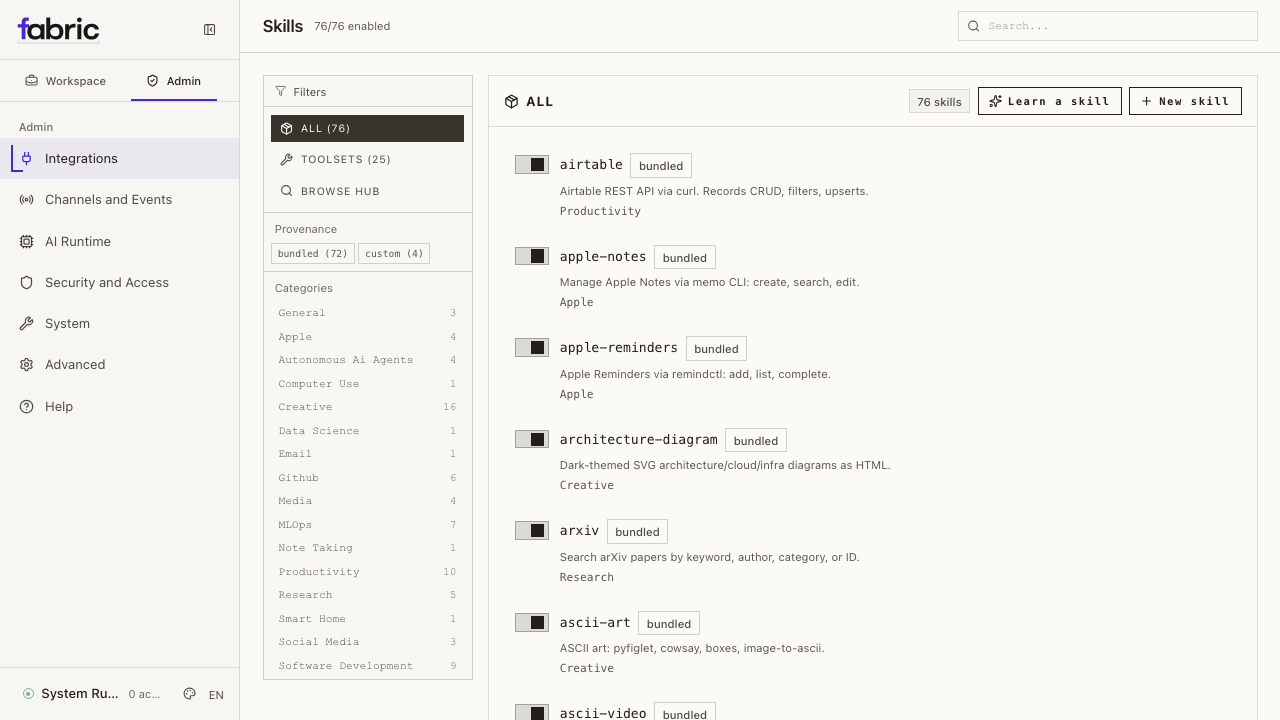
Open /admin/integrations/skills to browse, search, and toggle installed skills
and toolsets, and install new ones from the Hub. The shorter /skills route
redirects here. Skills are loaded from ~/.fabric/skills/ and grouped by
category.
- Search — filter installed skills and toolsets by name, description, or category
- Category filter — click category pills to narrow the list (e.g. MLOps, MCP, Red Teaming, AI)
- Toggle — enable or disable individual skills with a switch. Changes take effect on the next session.
- Toolsets — a separate view shows built-in toolsets (file operations, web browsing, etc.) with their active/inactive status, setup requirements, and list of included tools
- Browse hub — a third view searches the skill hub across all sources (the same as
fabric skills search), installs any result by identifier with a live install log, and offers an "Update all" button to refresh installed skills.
Admin / Integrations / MCP
Manage MCP servers without the CLI. The same mcp_servers
block in config.yaml that fabric mcp reads from.
Your MCP servers:
- Add — register an HTTP/SSE server (URL) or a stdio server (command + args), with optional
KEY=VALUEenvironment variables for stdio servers - Enable / disable — toggle a server on or off without deleting it. A disabled server stays in config so you can re-enable it later. Takes effect on the next gateway restart.
- Test — connect to a server, list its tools, and disconnect — verifies the connection before the agent depends on it
- Remove — delete a server from the config
- Secret-shaped env values are redacted in the list view
Catalog: browse the Fabric-curated MCP servers (the bundled optional-mcps/
catalog) and install any of them with one click. Entries that need API keys
prompt for them inline; the values go to .env. This is the same catalog
fabric mcp catalog / fabric mcp install use.
Admin / Channels and Events / Webhooks
Manage dynamic webhook subscriptions. The webhook platform must be enabled in messaging settings first; the page shows a hint when it isn't.
- Create — name, description, event filter, delivery target, optional direct-delivery mode, and an agent prompt. On creation the page surfaces the route URL and the one-time HMAC secret to copy.
- Enable / disable — toggle a subscription on or off. Disabled routes stay in the subscriptions file but the gateway rejects their incoming events (403). The gateway hot-reloads the file, so the change takes effect on the next event — no restart needed.
- List — each subscription shows its URL, events, and delivery target
- Delete — remove a subscription
Admin / Security and Access / Pairing
Approve and revoke messaging users without the CLI — how a remote admin
onboards Telegram/Discord/etc. users to a paired gateway. Full parity with
fabric pairing.
- Pending requests — each shows platform, code, user, and age, with an Approve button
- Approved users — each shows platform and user, with a Revoke button
- Clear pending — drop all outstanding pairing codes
Admin / Channels and Events / Channels
Connect Fabric to any messaging platform from the browser — full parity with
fabric setup gateway. The page lists every supported channel (Telegram,
Discord, Slack, Matrix, Mattermost, WhatsApp, Signal, BlueBubbles/iMessage,
Email, SMS/Twilio, DingTalk, Feishu/Lark, WeCom, WeChat, QQ Bot, Yuanbao, plus
the API server and webhook endpoints) with its live connection status.
- Configure — open a per-platform form with exactly the fields that channel needs (bot token, app token, server URL, allowlist, etc.). Secrets render as password inputs and are stored redacted; leaving a field blank keeps the existing value. Required fields are marked and validated. A "Setup guide" link points to the platform's credential docs.
- Enable / disable — toggle a channel on or off. The credential stays on disk; only the active state changes.
- Test — check whether the channel is configured, enabled, and reporting a live connection from the gateway.
- Restart gateway — credentials are written to
~/.fabric/.envand the enabled flag toconfig.yaml; the gateway connects each enabled channel on its next restart, which you can trigger right from the page.
Admin / System
A consolidated administration panel for installation-wide operations:
- Host — live system stats (polled about every 2 seconds with rolling sparklines): OS / kernel, architecture, hostname, Python and Fabric versions, CPU core count + utilization, memory, disk usage of the Fabric home, uptime, load average, network throughput, and GPU/VRAM when available. (CPU/memory/disk/network come from
psutilwhen installed; GPU viapynvmlornvidia-smi; identity fields are always shown.) The same collector powersfabric monitor/fabric topand the desktop Command Center host panel. The Fabric version shows an update-status badge (up to date / N commits behind) and a Check for updates button. When an update is available on a git or pip install, an Update now button opens a confirmation dialog — showing how many commits you'll pull — before runningfabric updatein the background. On Docker/Nix/Homebrew installs the dashboard can't apply the update in place, so it shows the correct out-of-band command instead. - Nous Portal — login status, the active inference provider, and the Tool Gateway routing table (which tools run via the Portal vs. locally), with a link to manage your subscription. Read-only mirror of
fabric portal. - Skill curator — the background skill-maintenance status (active / paused, interval, last run) with pause/resume and a run-now button. Mirrors
fabric curator. - Gateway — start, stop, and restart the messaging gateway, with live status (running/stopped, PID, state)
- Memory — pick the external memory provider (or built-in only), and reset the built-in
MEMORY.md/USER.mdstores - Credential pool — add and remove the rotating API keys the agent round-robins through (per provider). Keys are redacted in the list; the raw value only ever reaches the agent.
- Operations — run
doctor, a security audit, create a backup, restore from a backup archive, update skills, show the system-prompt size breakdown, generate a support dump, or migrate config for retired settings. Each spawns a background action whose live log streams into the page. - Checkpoints — see the
/rollbackshadow store size and prune it - Shell hooks — list configured hooks with their consent + executable status, create a hook (event, command, matcher, timeout, with an opt-in consent grant), and remove one. Hooks run arbitrary commands, so the create form carries a security warning and the hook only fires after consent is granted.
Creating a shell hook (note the consent checkbox and the run-arbitrary-commands warning):
The web experience can read and write the selected profile's .env file,
which contains API keys and secrets. It binds to 127.0.0.1 by default. Every
non-loopback bind engages Fabric's authentication gate and fails closed when no
provider is configured. Authentication is not a substitute for TLS, network
controls, or the future resource-level enterprise authorization model.
Admin / Deploy
A guided, plain-language front end for Fabric's Loom deployment plane, designed so a non-technical operator can put something online in a few clicks:
- Status header — counts of machines (hosts), projects, and deployments, plus a "live now" list of active deployments with their state.
- Step 1 — choose where to run it — your registered hosts, with a one-click Use this machine button that registers a local host.
- Step 2 — choose what to deploy — your projects, with an Add a project form (a Docker Compose app, or "host Fabric itself").
- Step 3 — deploy — Loom shows the plan first (what it will do, flagging any destructive step), then a confirm button deploys and streams the resulting state and logs. A failed candidate never displaces the running release.
- Deployments ledger — release history with state badges and a Roll back button for any project with a prior release.
Every action calls the same /api/loom/* backend that the fabric loom CLI and
the agent loom toolset use, so the dashboard, desktop app, CLI, and agents stay
in agreement. The desktop app serves this page from the same backend.
/reload Slash Command
Fabric also provides a /reload slash command in the interactive CLI. After
changing API keys in Admin (or editing .env directly), use /reload in an
active CLI session to pick up the changes without restarting:
You → /reload
  Reloaded .env (3 var(s) updated)
This re-reads ~/.fabric/.env into the running process's environment. Useful when you've added a new provider key via the dashboard and want to use it immediately.
REST API
The web dashboard exposes a REST API that the frontend consumes. You can also call these endpoints directly for automation:
The management endpoint families — /api/config, /api/env, /api/skills,
/api/tools/toolsets, /api/mcp, and /api/model/{info,options,auxiliary,set} —
accept an optional ?profile=<name> query parameter (or "profile" in the
JSON body for writes) that scopes the read/write to that profile's
FABRIC_HOME. Omitted = the dashboard's own profile. Unknown profile names
return 404. The /api/pty WebSocket accepts the same parameter to spawn
a chat under the selected profile.
GET /api/status
Returns agent version, gateway status, platform states, and active session count.
GET /api/sessions
Returns the 20 most recent sessions with metadata (model, token counts, timestamps, preview).
GET /api/config
Returns the current config.yaml contents as JSON.
GET /api/config/defaults
Returns the default configuration values.
GET /api/config/schema
Returns a schema describing every config field — type, description, category, and select options where applicable. The frontend uses this to render the correct input widget for each field.
PUT /api/config
Saves a new configuration. Body: {"config": {...}}.
GET /api/env
Returns all known environment variables with their set/unset status, redacted values, descriptions, and categories.
PUT /api/env
Sets an environment variable. Body: {"key": "VAR_NAME", "value": "secret"}.
DELETE /api/env
Removes an environment variable. Body: {"key": "VAR_NAME"}.
GET /api/sessions/{session_id}
Returns metadata for a single session.
GET /api/sessions/{session_id}/messages
Returns the full message history for a session, including tool calls and timestamps.
GET /api/sessions/search
Full-text search across message content. Query parameter: q. Returns matching session IDs with highlighted snippets.
DELETE /api/sessions/{session_id}
Deletes a session and its message history.
GET /api/logs
Returns log lines. Query parameters: file (agent/errors/gateway), lines (count), level, component.
GET /api/analytics/usage
Returns token usage, cost, and session analytics. Query parameter: days (default 30). Response includes daily breakdowns and per-model aggregates.
GET /api/cron/jobs
Returns all configured cron jobs with their state, schedule, and run history.
POST /api/cron/jobs
Creates a new cron job. Body: {"prompt": "...", "schedule": "0 9 * * *", "name": "...", "deliver": "local"}.
POST /api/cron/jobs/{job_id}/pause
Pauses a cron job.
POST /api/cron/jobs/{job_id}/resume
Resumes a paused cron job.
POST /api/cron/jobs/{job_id}/trigger
Immediately triggers a cron job outside its schedule.
DELETE /api/cron/jobs/{job_id}
Deletes a cron job.
GET /api/skills
Returns all skills with their name, description, category, and enabled status.
PUT /api/skills/toggle
Enables or disables a skill. Body: {"name": "skill-name", "enabled": true}.
GET /api/tools/toolsets
Returns all toolsets with their label, description, tools list, and active/configured status.
Admin endpoints
These power the MCP, Channels, Webhooks, Pairing, and System pages. All sit behind the
same auth gate as the rest of /api/.
| Method & path | Purpose |
|---|---|
GET /api/mcp/servers | List configured MCP servers (env values redacted) |
POST /api/mcp/servers | Add a server. Body: {name, url?, command?, args?, env?, auth?} |
POST /api/mcp/servers/{name}/test | Connect, list tools, disconnect |
PUT /api/mcp/servers/{name}/enabled | Enable / disable a server |
DELETE /api/mcp/servers/{name} | Remove a server |
GET /api/mcp/catalog | Browse the Fabric-curated MCP catalog |
POST /api/mcp/catalog/install | Install a catalog entry (with required env) |
GET /api/messaging/platforms | List every messaging channel with status + per-platform setup fields |
PUT /api/messaging/platforms/{id} | Configure a channel. Body: {enabled?, env?, clear_env?} (env writes to .env, enabled to config.yaml) |
POST /api/messaging/platforms/{id}/test | Report whether a channel is configured, enabled, and connected |
GET /api/pairing | List pending + approved messaging users |
POST /api/pairing/approve | Approve a code. Body: {platform, code} |
POST /api/pairing/revoke | Revoke a user. Body: {platform, user_id} |
POST /api/pairing/clear-pending | Drop all pending codes |
GET /api/webhooks | List subscriptions + platform-enabled status |
POST /api/webhooks | Create a subscription (returns one-time secret) |
DELETE /api/webhooks/{name} | Remove a subscription |
GET /api/credentials/pool | List pooled rotation keys (redacted) |
POST /api/credentials/pool | Add a key. Body: {provider, api_key, label?} |
DELETE /api/credentials/pool/{provider}/{index} | Remove a key (1-based index) |
GET /api/memory | Active provider + available providers + built-in file sizes |
PUT /api/memory/provider | Select a provider (empty = built-in only) |
POST /api/memory/reset | Reset built-in memory. Body: {target: all|memory|user} |
POST /api/gateway/start · /stop · /restart | Gateway lifecycle (backgrounded) |
POST /api/ops/doctor · /security-audit · /backup · /import | Diagnostics & maintenance (backgrounded; tail via /api/actions/{name}/status) |
GET /api/ops/hooks | Configured shell hooks + allowlist status |
GET /api/ops/checkpoints · POST .../prune | Inspect / prune the /rollback store |
POST /api/ops/hooks · DELETE /api/ops/hooks | Create / remove a shell hook (consent-gated) |
GET /api/system/stats | Host stats — OS, CPU, memory, disk, uptime |
GET /api/fabric/update/check | Report update availability (commits behind, install method) without applying. For git/pip installs that are behind, also returns a commits list (sha, summary, author, at) of what's changed. ?force=1 busts the 6h cache |
GET /api/curator · PUT .../paused · POST .../run | Skill-curator status + pause/resume + run |
GET /api/portal | Nous Portal auth + Tool Gateway routing (read-only) |
POST /api/ops/prompt-size · /dump · /config-migrate | Diagnostics (backgrounded) |
PUT /api/webhooks/{name}/enabled | Enable / disable a webhook route |
POST /api/skills/hub/install · /uninstall · /update | Skills hub actions (backgrounded) |
GET /api/skills/hub/search | Search the skill hub across all sources |
GET /api/sessions/stats | Session-store statistics |
PATCH /api/sessions/{id} | Rename / archive a session |
GET /api/sessions/{id}/export | Export a session (metadata + messages) as JSON |
POST /api/sessions/prune | Delete ended sessions older than N days |
PUT /api/cron/jobs/{id} | Edit a cron job's prompt / schedule / name / deliver |
Authentication (gated mode)
When the dashboard is bound to a public or non-loopback address — anything other than 127.0.0.1 / localhost — Fabric engages an auth gate. Every request must carry a verified session cookie or it's bounced to the login page. Three providers ship in the box:
- Username/password — the simplest way to put auth on a self-hosted / on-prem / homelab dashboard. No external identity provider. Use it only on a trusted network or behind a VPN — not for public-internet exposure.
- Self-hosted OIDC — the preferred public-internet route when you administer an OpenID Connect provider such as Keycloak, Auth0, Okta, Google, or GitHub through an OIDC bridge.
- Hosted subscription OAuth — an optional compatibility provider for deployments already using that subscription account.
Operator-owned dashboards bound to loopback are unaffected — no auth, no login page.
When the gate engages
| Flags | Auth gate | Use case |
|---|---|---|
fabric dashboard (default — binds to 127.0.0.1) | OFF | Local development |
fabric dashboard --host 0.0.0.0 | ON | Remote / production — protect with the username/password provider or OAuth |
The gate is on whenever the bind host is not 127.0.0.1, ::1, or
localhost. Wildcard binds such as 0.0.0.0 are non-loopback and always
engage it.
--insecure is now a no-opThe legacy flag is accepted so old launch scripts do not break, but it cannot
disable the auth gate. Configure an auth provider for every non-loopback bind,
or bind to 127.0.0.1 and connect through an SSH tunnel or VPN.
Fail-closed semantics
If the gate would engage but no DashboardAuthProvider is registered (no Nous plugin, no custom plugin), fabric dashboard refuses to bind with an explicit error message. There is no "default-deny but accept everything" fallback — a misconfigured gated dashboard never starts.
When you run fabric dashboard --host 0.0.0.0 interactively (a real terminal) and no provider is configured yet, Fabric doesn't just fail — it offers to set one up on the spot: pick username & password (writes dashboard.basic_auth to config.yaml and you're running in seconds) or OAuth (points you at fabric dashboard register). Non-interactive callers — Docker/s6, CI, piped runs — skip the prompt and hit the fail-closed error above, so an unattended deploy still never starts without auth.
Nous OAuth
The bundled plugins/dashboard_auth/nous plugin registers a
DashboardAuthProvider named nous when a client ID is configured. For a
public deployment where you administer the identity boundary, prefer the
self-hosted OIDC provider.
Registering a dashboard
To use the Nous provider you need an OAuth client ID (shape agent:{id}). There are two ways to get one:
-
CLI —
fabric dashboard register. Run it on the host where the dashboard lives. It resolves your existing Nous login (runfabric setupfirst if you're not logged in), registers a self-hosted OAuth client with the Portal, and writesdashboard.oauth.client_idto~/.fabric/config.yaml. Optional flags:--name(a human-readable label, otherwise auto-generated) and--redirect-uri(a public HTTPS callback URL for an internet-facing host).fabric dashboard register
# ✓ Registered dashboard "swift_falcon"
# …writes dashboard.oauth.client_id to ~/.fabric/config.yaml -
GUI — the Local Dashboards page. Open
/local-dashboardsin the Nous Portal to register, name, manage, and revoke self-hosted dashboards from the browser. Copy the resultingagent:{id}client ID intodashboard.oauth.client_idinconfig.yaml. This is also where you revoke a dashboard registered via the CLI.
Configuration
The plugin reads its non-secret client ID from config.yaml:
dashboard:
oauth:
client_id: agent:01HXYZ… # required to engage the gate
If no client ID is configured, the plugin reports the specific reason and the dashboard's fail-closed bind error tells you exactly what to fix:
Refusing to bind dashboard to 0.0.0.0 — the OAuth auth gate engages on
non-loopback binds, but no auth providers are registered.
Bundled providers reported these issues:
• nous: dashboard.oauth.client_id in config.yaml is empty. Set it to
the client id provisioned by the Nous Portal (shape
'agent:{instance_id}'). Configure an auth provider, or bind to
127.0.0.1 and connect through an SSH tunnel or VPN.
Worked example: Nous Research
From a logged-in Fabric install to a Nous-gated dashboard in three steps.
1. Log in and register the dashboard. fabric dashboard register uses your existing Nous login to provision an OAuth client and writes dashboard.oauth.client_id into ~/.fabric/config.yaml:
fabric setup # if you're not already logged into Nous Portal
fabric dashboard register
# ✓ Registered dashboard "swift_falcon"
# …writes dashboard.oauth.client_id to ~/.fabric/config.yaml
2. Run the dashboard on a reachable address. A non-loopback bind engages
the OAuth gate, and the client_id just written activates the nous provider:
fabric dashboard --host 0.0.0.0 --port 9119 --no-open
3. Log in. Open http://<host>:9119/, you'll be bounced to /login. Click Sign in with Nous Research → authenticate at the Portal → land back on the authenticated dashboard. Verify the gate from any machine:
curl -s http://<host>:9119/api/status | jq '.auth_required, .auth_providers'
# true
# ["nous"]
GET /api/auth/me then returns the verified session (provider: nous). For an internet-facing host, register with --redirect-uri https://fabric.example.com/auth/callback and set dashboard.public_url so the OAuth callback resolves to your public URL (see Public URL override).
Username/password provider (no OAuth IDP)
If you don't want to wire up an OAuth identity provider — a self-hosted "just put a password on my dashboard" deployment — the bundled plugins/dashboard_auth/basic plugin registers a DashboardAuthProvider named basic that authenticates with a username and password instead of an OAuth redirect.
It plugs into the same gate as the OAuth provider: every non-loopback bind
engages the gate, the login page renders a credential form for this provider,
and everything downstream of login—session cookies, transparent refresh, WS
tickets, logout, and the audit log—is identical to the OAuth path. Sessions are
stateless HMAC-signed tokens, so there is no database or external IDP. Password
hashing uses stdlib scrypt.
The username/password provider is intended for self-hosted / on-prem / homelab dashboards on a trusted network, or reachable only over a VPN. It protects a single shared credential with no external identity provider, MFA, or per-user accounts behind it, so it is not suitable for exposing a dashboard directly to the public internet. For an internet-facing dashboard, use your own self-hosted OIDC or custom OAuth provider instead. The hosted subscription provider remains available only for compatibility with existing deployments.
Configuration
It reads only from config.yaml. It activates when username plus either
password_hash (preferred) or password are configured; otherwise it is a
no-op, so OAuth users and loopback operators are unaffected.
config.yaml:
dashboard:
  basic_auth:
    username: admin
    # Preferred — no plaintext at rest. Compute with:
    #   python -c "from plugins.dashboard_auth.basic import hash_password; print(hash_password('PW'))"
    password_hash: "scrypt$16384$8$1$…$…"
    # ...or a plaintext password (hashed in-memory at load; less safe at rest):
    # password: "s3cret"
    secret: "<32+ random bytes, base64 or hex>" # token-signing key
    session_ttl_seconds: 43200 # optional; access-token lifetime (default 12h)
All five fields share this one config contract. If you prefer to keep an
underlying credential in ~/.fabric/.env, put an operator-chosen placeholder
such as password_hash: "${VAR}" in config.yaml (replacing VAR with the
name you chose); Fabric's standard config interpolation resolves it at load
time.
secret for stable sessionsWhen secret is empty, a random per-process signing key is generated. That's fine for a single process, but it means every session is invalidated on restart and sessions don't span multiple workers. Set an explicit secret for restart-surviving / multi-worker deployments.
The /auth/password-login endpoint is rate-limited per client IP (default 10 attempts/minute → HTTP 429) and returns a single generic 401 Invalid credentials for both unknown users and wrong passwords, so it can't be used as a username-enumeration oracle.
Worked example: username/password
From nothing to a password-gated dashboard on a trusted network in three steps.
1. Set the config fields. Hash the password so no plaintext sits at rest, and set a stable signing secret so sessions survive restarts:
HASH=$(python -c "from plugins.dashboard_auth.basic import hash_password; print(hash_password('choose-a-strong-password'))")
fabric config set dashboard.basic_auth.username admin
fabric config set dashboard.basic_auth.password_hash "$HASH"
fabric config set dashboard.basic_auth.secret "$(openssl rand -base64 32)"
2. Run the dashboard on a reachable address. A non-loopback bind engages
the gate, and the username + hash activate the basic provider:
fabric dashboard --host 0.0.0.0 --port 9119 --no-open
3. Log in. Open http://<host>:9119/, you'll be bounced to /login — a credential form (not a "Sign in with X" button). Enter admin / your password → land on the authenticated dashboard. Verify the gate from any machine:
curl -s http://<host>:9119/api/status | jq '.auth_required, .auth_providers'
# true
# ["basic"]
GET /api/auth/me then returns the verified session (provider: basic). Keep this behind a VPN — see the warning above; for a public host use self-hosted OIDC or a custom OAuth provider.
Writing your own password provider
basic is just one implementation of an extension point. Any plugin can register a password provider: set supports_password = True on your DashboardAuthProvider subclass and implement complete_password_login(*, username, password) -> Session (raise InvalidCredentialsError on rejection, ProviderError if your backing store is down). The OAuth start_login / complete_login methods can be left as NotImplementedError stubs for a pure-password provider. This is the path for LDAP-bind, a credentials database, or any other non-redirect auth scheme — the framework handles the form, the route, the cookies, and refresh for you.
Self-hosted OIDC provider
If you run your own identity provider, the bundled plugins/dashboard_auth/self_hosted plugin authenticates the dashboard against it using standard OpenID Connect — no per-IDP code, no Nous Portal involved. It's verified against and works with any conformant OIDC server:
Authentik · Keycloak · Zitadel · Authelia · Auth0 · Okta · Google · …
Like the hosted OAuth provider, it auto-loads and only registers itself once it is configured, so it is a no-op for loopback dashboards.
Configuration
Configure an issuer and a client_id (a public PKCE client — no client secret). The plugin fetches the IDP's authorization_endpoint, token_endpoint, and jwks_uri from {issuer}/.well-known/openid-configuration, so you never hardcode endpoint URLs.
config.yaml — the canonical surface:
dashboard:
  oauth:
    provider: self-hosted
    self_hosted:
      issuer: https://auth.example.com/application/o/fabric/ # required
      client_id: fabric-dashboard # required
      scopes: "openid profile email" # optional (this is the default)
      # Optional, confidential clients only; config interpolation is supported:
      # client_secret: "${VAR}" # replace VAR with an operator-chosen name
The issuer, client ID, scopes, and optional confidential-client secret all live
under dashboard.oauth.self_hosted. The secret may use config's ${VAR}
interpolation when you prefer to keep the underlying value in
~/.fabric/.env.
In your IDP, register a public application/client with the authorization-code + PKCE (S256) grant and add the dashboard's callback as an allowed redirect URI. The callback is <dashboard public URL>/auth/callback (see Public URL override for how the dashboard derives its public URL behind a proxy).
What it verifies
The provider verifies the OpenID Connect ID token (RS256/ES256) against the discovered jwks_uri, with the iss and aud claims pinned to your configured issuer and client_id. Standard OIDC claims map onto the dashboard session:
| Session field | Claim(s) |
|---|---|
user_id | sub (required) |
email | email |
display_name | name → preferred_username → nickname → email |
org_id | org_id / organization, else joined groups |
The ID token is what establishes identity — the access token is treated as opaque (the OIDC spec does not require it to be a JWT). Endpoint URLs are required to be HTTPS (loopback http:// is allowed for local-dev IDPs), and the discovery document's advertised issuer must match your configured one (a trailing-slash difference is tolerated). Refresh tokens, when the IDP issues them, are used for silent re-auth via the standard refresh_token grant; logout calls the IDP's RFC 7009 revocation_endpoint when advertised.
Confidential clients set
client_secretin the same block. Fabric keeps PKCE enabled and selectsclient_secret_basicorclient_secret_postfrom the identity provider's discovery document. Leave it empty for a public PKCE-only client.
Worked example: Keycloak
Keycloak is one of the easiest self-hosted OIDC servers to stand up for a local test — it runs as a single container in dev mode (in-memory DB) and exposes textbook OIDC discovery. This walkthrough gets you from nothing to a working dashboard login in a few minutes.
1. Run Keycloak with a pre-configured realm. Save this realm export as realm-fabric.json — it defines a fabric realm, a public PKCE client (fabric-dashboard), and a test user, all imported on boot so there's nothing to click in the admin UI:
{
  "realm": "fabric",
  "enabled": true,
  "clients": [
    {
      "clientId": "fabric-dashboard",
      "name": "Fabric Dashboard",
      "enabled": true,
      "publicClient": true,
      "standardFlowEnabled": true,
      "protocol": "openid-connect",
      "redirectUris": ["http://localhost:9119/auth/callback"],
      "webOrigins": ["http://localhost:9119"],
      "attributes": { "pkce.code.challenge.method": "S256" }
    }
  ],
  "users": [
    {
      "username": "testuser",
      "enabled": true,
      "emailVerified": true,
      "email": "testuser@example.com",
      "firstName": "Test",
      "lastName": "User",
      "credentials": [
        { "type": "password", "value": "testpassword", "temporary": false }
      ]
    }
  ]
}
Start it (Keycloak 26+), mounting that file into the import directory:
docker run --rm -p 8080:8080 \
  -e KC_BOOTSTRAP_ADMIN_USERNAME=admin \
  -e KC_BOOTSTRAP_ADMIN_PASSWORD=admin \
  -v "$PWD/realm-fabric.json:/opt/keycloak/data/import/realm-fabric.json:ro" \
  quay.io/keycloak/keycloak:26.0 \
  start-dev --import-realm
Once it's up, the realm advertises standard OIDC discovery at
http://localhost:8080/realms/fabric/.well-known/openid-configuration (issuer
http://localhost:8080/realms/fabric). The admin console is at
http://localhost:8080/ (admin / admin).
2. Point the dashboard at it. The self-hosted plugin permits a loopback http:// issuer (HTTPS is required for any non-loopback issuer), so the local Keycloak works as-is:
dashboard:
  public_url: "http://localhost:9119"
  oauth:
    provider: self-hosted
    self_hosted:
      issuer: "http://localhost:8080/realms/fabric"
      client_id: "fabric-dashboard"
dashboard.public_url tells the dashboard its OAuth callback is
http://localhost:9119/auth/callback — the redirect URI the realm registered
above. Binding to 0.0.0.0 (a non-loopback bind) is what
engages the OAuth gate.
fabric dashboard --host 0.0.0.0 --port 9119 --no-open
3. Log in. Open http://localhost:9119/, you'll be bounced to /login. Click Sign in with Self-Hosted OIDC → authenticate at Keycloak as testuser / testpassword → land back on the authenticated dashboard. The sidebar shows Logged in as Test User via self-hosted, and GET /api/auth/me returns the verified session (provider: self-hosted, email: testuser@example.com).
If you bind or browse on a different host/port, add that origin's
…/auth/callbackto the client's Valid redirect URIs in the Keycloak admin console (Clients → fabric-dashboard → Settings). The same pattern works for Authentik, Zitadel, Authelia, and other OIDC servers — only the issuer URL and client registration UI differ.
Public URL override
By default, the dashboard reconstructs the OAuth callback URL from the request — X-Forwarded-Host + X-Forwarded-Proto + X-Forwarded-Prefix (when uvicorn is configured with proxy_headers=True, which start_server enables under the gate). This works out of the box behind a reverse proxy that sets all three headers correctly.
For deploys behind reverse proxies that don't reliably forward those headers (manual nginx setups, on-prem ingresses, custom-domain deploys with partial proxy chains), set dashboard.public_url to the complete public URL the dashboard is reached at:
dashboard:
  public_url: "https://dashboard.example.com/fabric"
When set, the OAuth callback URL becomes <public_url>/auth/callback verbatim — X-Forwarded-Prefix is ignored on that code path because the operator has explicitly declared the public URL. This is intentional: stacking the prefix on top would double-prefix the common case where the prefix is already baked into public_url.
When dashboard.public_url is unset, Fabric reconstructs the URL from the
forwarded headers.
Validation rejects values without http:// / https:// scheme, without a host, or containing quote / angle / whitespace / control characters. A malformed value silently falls through to header reconstruction so the login flow keeps working rather than dispatching the user to a hostile URL.
Note:
public_urloverrides the OAuth callback URL only. TheSecurecookie flag is still controlled byrequest.url.scheme(X-Forwarded-Proto under proxy_headers), so anhttp://public_urlon a TLS-terminated public deploy will produce non-Secure cookies. This is an operator footgun — pairpublic_urlwith proper TLS termination upstream.
OAuth flow
The Nous Portal provider uses an authorization-code grant with PKCE (S256):
- User hits
/without a session cookie → gate redirects to/login. - Login page shows a "Continue with Nous Research" button →
/auth/login?provider=nous. - Server stashes PKCE state in a short-lived cookie, redirects user to
https://portal.nousresearch.com/oauth/authorize?…. - User authenticates with Portal, lands at
/auth/callback?code=…&state=…. - Server exchanges the code for an access token at
POST /api/oauth/token, verifies the JWT signature against the Portal's JWKS (/.well-known/jwks.json), and sets thefabric_session_atcookie. - User is redirected to
/(or to the original deep-link path via thenext=query parameter).
The provider verifies Portal tokens against its JWKS and persists rotated
refresh tokens through the dashboard authentication middleware. If refresh is
no longer possible, the SPA returns to /login to run the flow again.
Cookies set
| Name | Lifetime | Notes |
|---|---|---|
fabric_session_at | Token TTL (15 min) | HttpOnly, SameSite=Lax, Secure-when-HTTPS |
fabric_session_pkce | 10 min | HttpOnly; holds the PKCE verifier + provider hint during the round trip |
fabric_session_rt | unused in v1 | Reserved for forward-compat; not written when refresh_token is empty |
All three are Path=/ and SameSite=Lax. The Secure flag is set when the dashboard is reached over HTTPS (detected via the request URL scheme — honours X-Forwarded-Proto from an upstream TLS terminator under proxy_headers=True).
Logout
The sidebar widget shows Logged in as <user_id…> via nous with a logout icon. Clicking it POSTs /auth/logout, which clears all dashboard-auth cookies and redirects back to /login.
Audit log
Every login start, success, failure, and session-verify failure is written as a JSON line to $FABRIC_HOME/logs/dashboard-auth.log. Sensitive fields (access_token, refresh_token, code, code_verifier, state, Authorization header) are redacted before logging.
Custom providers
To plug a non-Nous OAuth provider (e.g. Google, GitHub, custom OIDC), create a plugin that registers a DashboardAuthProvider:
# ~/.fabric/plugins/dashboard-auth-myidp/__init__.py
from fabric_cli.dashboard_auth import DashboardAuthProvider, Session, LoginStart

class MyIdPProvider(DashboardAuthProvider):
    name = "myidp"
    display_name = "My Identity Provider"

    def start_login(self, *, redirect_uri): ...
    def complete_login(self, *, code, state, code_verifier, redirect_uri): ...
    def verify_session(self, *, access_token): ...
    def refresh_session(self, *, refresh_token): ...
    def revoke_session(self, *, refresh_token): ...

def register(ctx):
    ctx.register_dashboard_auth_provider(MyIdPProvider())
The login page lists all registered providers; multiple providers can be stacked and the user picks one at /login.
Non-interactive (bearer-token) auth
Alongside interactive human login (session cookies + refresh), the DashboardAuthProvider ABC supports a non-interactive, service-to-service capability via supports_token = True + verify_token(token=...). When a provider opts in, an inbound Authorization: Bearer <token> is verified and, on success, a TokenPrincipal is attached to the request (request.state.token_principal) for the endpoints that provider marks token-authable — no cookie, no redirect, no refresh.
Custom providers can implement supports_token/verify_token the same way to expose their own machine-authable endpoints.
Verifying the gate is on
# Configure the provider in config.yaml, then start the dashboard:
#   dashboard:
#     oauth:
#       client_id: agent:test
#
# then just:
fabric dashboard --host 0.0.0.0

# Hit /api/status to see the gate state:
curl -s http://127.0.0.1:9119/api/status | jq '.auth_required, .auth_providers'
# true
# ["nous"]
The dashboard's React StatusPage shows the same fields under "Web server". A sidebar AuthWidget surfaces the current identity once you've signed in.
Connecting Fabric to a remote backend
Fabric can drive a Fabric backend running on another machine (a VPS, a home server, a Mini behind Tailscale). In the app this lives under Settings → Gateway → Remote gateway, which asks for a Remote URL and a way to Sign in. (For the desktop app itself — install, settings, chat — see the Fabric page.)
You protect the remote dashboard with one of the bundled auth providers, and the desktop app signs in against whichever one the backend advertises. For a VPS or public host, prefer self-hosted OIDC. The bundled username/password provider is for a trusted LAN or VPN and is not suitable for direct public-internet exposure. Binding to a non-loopback address engages the auth gate; once signed in, Desktop reuses the session for the chat WebSocket automatically.
The recipe below uses username/password on a trusted network. For a public deployment, follow Self-hosted OIDC.
On the backend (the remote machine)
# 1. Configure the provider in ~/.fabric/config.yaml.
HASH=$(python -c "from plugins.dashboard_auth.basic import hash_password; print(hash_password('choose-a-strong-password'))")
fabric config set dashboard.basic_auth.username admin
fabric config set dashboard.basic_auth.password_hash "$HASH"
fabric config set dashboard.basic_auth.secret "$(openssl rand -base64 32)"

# 2. Run the dashboard bound to a reachable address. The non-loopback bind
#    engages the auth gate; the username/password provider handles login.
fabric dashboard --no-open --host 0.0.0.0 --port 9119
The example stores only a scrypt hash, not the plaintext password. See
Username/password provider for the
full config surface and optional ${VAR} interpolation.
The dashboard reads and writes your .env (API keys, secrets) and can run agent commands. The username/password setup shown here is for a trusted network — never expose a password-protected dashboard directly to the open internet. Put it behind a VPN. Tailscale is the clean option: bind to the machine's tailscale IP (--host <tailscale-ip>) and use http://<tailscale-ip>:9119 as the Remote URL. Only devices on your tailnet can reach it. To reach a backend over the public internet, use a standards-based self-hosted OIDC or custom OAuth provider instead.
In Fabric
Settings → Gateway → Remote gateway:
- Remote URL —
http://<backend-host>:9119(path prefixes like/fabricare supported if you front it with a reverse proxy) - Sign in — the app detects the username/password gateway and shows a Sign in button; click it and enter the credentials from step 1
- Save and reconnect — switches the desktop shell onto the remote backend
The session refreshes automatically and survives restarts when
dashboard.basic_auth.secret is set on the backend.
Troubleshooting
- "Remote gateway incomplete" — you haven't entered a remote URL.
- Sign-in fails with 401 / "Invalid credentials" — the username or password doesn't match
dashboard.basic_auth. The backend returns the same generic error for unknown user and wrong password, so check both. Confirm the gate withcurl -s http://<host>:9119/api/status | jq '.auth_required, .auth_providers'— it should reporttrueand include"basic". - No "Sign in" button — it asks for a session token instead — the username/password provider isn't active (
/api/statuswon't list"basic"). Make sure the username and a password (or password hash) are set and the dashboard process loaded them. - Signed out on every restart — set
dashboard.basic_auth.secretto a stable value; otherwise the signing key is regenerated per boot. - Connection refused / times out — the backend bound to
127.0.0.1(the default) instead of a reachable address, or a firewall/VPN is blocking the port. Bind to0.0.0.0or the tailscale IP and open the port to your trusted network.
CORS
The web server restricts CORS to localhost origins only:
http://localhost:9119/http://127.0.0.1:9119(production)http://localhost:3000/http://127.0.0.1:3000http://localhost:5173/http://127.0.0.1:5173(Vite dev server)
If you run the server on a custom port, that origin is added automatically.
Development
If you're contributing to the web dashboard frontend:
# Terminal 1: start the backend API
fabric dashboard --no-open

# Terminal 2: start the Vite dev server with HMR
cd web/
npm install
npm run dev
The Vite dev server at http://localhost:5173 proxies /api requests to the FastAPI backend at http://127.0.0.1:9119.
The frontend is built with React 19, TypeScript, Tailwind CSS v4, and shadcn/ui-style components. Production builds output to fabric_cli/web_dist/ which the FastAPI server serves as a static SPA.
Automatic Build on Update
When you run fabric update, the web frontend is automatically rebuilt if npm is available. This keeps the dashboard in sync with code updates. If npm isn't installed, the update skips the frontend build and fabric dashboard will build it on first launch.
Themes & plugins
The web experience ships with two canonical generated themes and four expressive presets. It can also be extended with user-defined themes, plugin tabs, shell slots, and backend API routes without cloning the repository.
Switch themes live from the header bar — click the palette icon next to the language switcher. Selection persists to config.yaml under dashboard.theme and is restored on page load.
Change the font independently from the same picker — the Font section below the theme list overrides the UI font of whatever theme is active. The choice persists across theme switches (config.yaml → dashboard.font); pick Theme default to clear it and return to the active theme's own font.
Customize the embedded terminals from the Terminal section at the bottom of the same picker. By default the Chat TUI and the Fabric Console derive their colors from the active theme; here you can instead pin a classic color scheme (Dracula, One Dark, Nord, Gruvbox Dark, Monokai, Solarized Dark/Light), switch the terminal font (JetBrains Mono, IBM Plex Mono, Space Mono), and set the font size (Auto keeps the responsive default). Color changes apply to new chat sessions — a running PTY keeps the palette it spawned with — while font and size changes apply to running terminals immediately. Preferences persist to config.yaml under dashboard.terminal (and mirror to the browser for flash-free loads).
Built-in themes:
| Theme | Character |
|---|---|
Fabric Light (fabric-light) | Default warm neutral canvas with restrained Fabric-purple actions |
Fabric Dark (fabric-dark) | Violet-charcoal canvas with restrained Fabric-purple actions |
Midnight (midnight) | Deep blue-violet, Inter + JetBrains Mono |
Mono (mono) | Grayscale, IBM Plex, compact |
Cyberpunk (cyberpunk) | Neon green on black, Share Tech Mono |
Rosé (rose) | Pink + ivory, Fraunces serif, spacious |
Fabric Light is the fresh-install default. The appearance control swaps the canonical Light/Dark pair, and the contrast preference selects their generated high-contrast variants.
To build your own theme, add a plugin tab, inject into shell slots, or expose plugin-specific REST endpoints, see Extending the Dashboard — the complete guide covers:
- Theme YAML schema — palette, typography, layout, assets, componentStyles, colorOverrides, customCSS
- Layout variants —
standard,cockpit,tiled - Plugin manifest, SDK, shell slots, page-scoped slots (inject widgets into built-in pages without overriding them), backend FastAPI routes
- A full combined theme-plus-plugin walkthrough (Strike Freedom cockpit demo)
- Discovery, reload, and troubleshooting